"When I was twenty, I and my friend were offered to go to Kathmandu to join the security forces of the then King. We were to go to Kathmandu and walk around the royal family. Sometimes as guards in ceremonies, and sometimes as gatekeepers. My son was born at that time, so I could not leave. But my friend did. He returned to the village only once to settle things. I hear he is a very rich man today. I hear he owns several houses and cars. If I had gone, maybe things might have been different for me too."

How to create paypal account?
PayPal is one of the most popular and trusted ways to send and receive money online.

"Saili" Guitar Chord and Lyrics.
G...............................C............................ Am Suna saili, saili, pardesh bata ma aaula G............................... C..............D............ G Suna saili, saili, chalis katesi ramaula

How to Delet and remove google product account like blogger google plus etc..
Many people don't know how to do his Google associate product Deactivate (Delete/Remove) because its not have there that option like if you want to remove Blogger Account you do not get that option on your Blogger Account.

how to earn money from clixsense ?
You can simply register by clicking here and filling the sign up form, you’ll receive a confirmation link in your given email and you have to verify by clicking.

How do we celebrate Dashain.
Go to Blogger edit html and find these sentences.Now replace these sentences with your own descriptions.This theme is Bloggerized by NewBloggerThemes.com.
Showing posts with label learn. Show all posts
Showing posts with label learn. Show all posts
Wednesday, March 1, 2017
What is your biggest regret?

Friday, February 10, 2017
How to Delet and remove google product account like blogger google plus etc..
Many people don't know how to do his Google associate product Deactivate (Delete/Remove) because its not have there that option like if you want to remove Blogger Account you do not get that option on your Blogger Account. But don't worry am here for your i help you to how to do it,
Let I show you step by step:-


Thank you for Visit my blog .
Let I show you step by step:-
- Go To Google.com,
- Login your Account .
- Click On your profile .

- Click on My Account, you can see there open another page . you have to find Delete account or services link

- Click On Delete account or services.

- After you click Delete account or services,
you have to Click Delete products link

- Then you have to do login your account again ,

- Then you Get this page for the delete your account.

- Here you have to select Product for deleting your account.
Thank you for Visit my blog .
Thursday, February 9, 2017
How to earn more money from Google Adsense
Google Adsense is the best way to earn money from web.It is the most reliable way to make money.Google Adsense is a great revenue sharing opportunity for all kind of website,it might be large,small or medium.Firstly you have to target people who is the relevant to your site. Google will places Ad to your website according to relevant content.So focus on it.You'll get paid small amount when Ad is either displayed on your page or clicked by someone.Now i will going to show you some superior idea that will boost up your boost Adsense earning.
STEP 1:Building an Ad unit
a. First Sign in to your Ad sense account,Next you go to Adsense and just click on My ads option in the top of the left side.Please focus in below...

b.Select a Name of your Ad unit.You can choose Any suitable name for you,But there is huge amount of data that you have to mange it.you should be select a well naming structure.
Example: Choose a terget site for Ad,Next select the Ad size and Ad date.
Look like: example.com _728x90 . Make a format you decide for naming to use what you understand.

c.Select a size that you want to display your Ad.See below for details,you can got Google help.

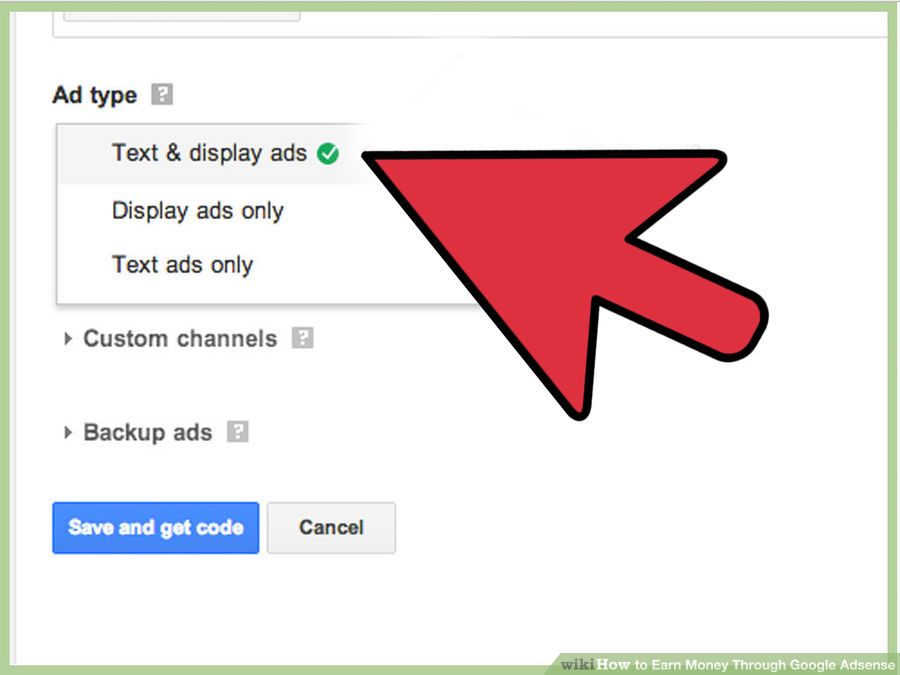
d.Set a Ad type.This object helps you which type of Ad you will see your website.

e.Make a custom channel.A custom channel provides you group Ad units.You can informed by custom channel and turn on your channel into targetable Ad which place you want to put this.

Create an ad which type you like most.This segment lets you prefer colors for the various element of an Ad such as title,font,background,title and URL.
It's always good for you to create an Ad colorful or suitable which is increase your site impression .Lets choose Google presets or custom settings.
f.Get code to add your website.if you have done your Ad setup then save it.Click the get code button and paste the code into your website and save.If you need any help go to Google help
Wednesday, February 8, 2017
illustrator logo tutorial for beginners 1
Subscribe for more
here are some link to learn more graphic design , video editing and about online jobs
DAMBAR KARKI
Opening and Closing Software and Applications
As
you learn more and more about computing, you will also become familiar
with jargon. The "jargon" of any discipline just means the particular
words that have specific meanings in this context. Software and hardware
are two of the most frequently used computer jargon words. Hardware is
the physical (touchable) computer itself, the keyboard, disk drive,
monitor, etc. Software is made up of the instructions that tell the
hardware what to do. You may have heard about Microsoft Word. This is a
software program that allows you to create and edit text documents
| Software might also be called an application. To open an application on your computer first click on the start menu (found in the lower left-hand corner of the illustration to the right). In the left hand column you will see your most recently used applications. The list at right shows applications from four of the largest vendors, Microsoft, Macromedida, Adobe and AOL, as well as one from a small independent company (CaptureEze Pro). Windows provides this list so that you can easily access your favorite software. Each user's list is unique, and reflects the software installed on that particular computer. If the application you currently want is on that list, then double-click to open that particular piece of software. Many times, however, you will find that the desired application is not in the favorites group. When that happens you have to navigate to your desired piece of software. |  |
| Say, for example, that you want to open Excel the very popular business program for creating electronic spreadsheets. but you notice it is not currently in the favorites group. You would then click on "All Programs". |  |
| This brings up a list of program categories, such as the one to the right. As you study this list, you note that Excel is still not available to you. The reason for this is that the system software categorizes programs automatically. In this way it is able to keep the overall list to a manageable size. Now, study this list again. Since you know that Excel is one of the programs that is included in Microsoft Office application suite, you conclude that you will find Excel in that group. |  |
| You access that particular group by clicking on the solid black arrow to the right of the words "Microsoft Office". Whenever you see one of the little arrows, it tells you that there is an additional menu of choices available. Next, move your mouse over the arrow. Don't click! Just move your mouse. A new menu appears, giving you a list of all available Microsoft Office programs. |  |
| Next, move your mouse over "Microsoft Office Excel 2003" (you might not have the same software version on your computer, but move the mouse over whatever name contains "Excel"). When the application name turns blue, it is available to be opened. Now click on the name. The Excel application will open onscreen. |  |
| After you have completed work in the open application, there are two tasks to complete the first is to save your work. Go to File > Save and single click. |  |
| When you have finished the task at hand and saved your file, first do a File > Close to close the particular file you are working on. Note that this action closes the file, but keeps the application itself open (in case you want to open another file). |  |
| You have closed the file, but the application is still running. Sometimes you want to keep the application open because you are planning to open another file that requires that software. When you do want to close the application, simply go to File > Exit. |  |